 Here's the spreadtrum driver tested on windows 7 that you may use for your android device to be recognized from your computer.
For easier transfer of files using android tools like adb, android commander and for researchdownload to flash pac file to your unit if you need to revive your phone from deadboot problems, bootloop and more.
Make sure to follow steps to troubleshoot if device is not detected even after installing the driver into your computer.
Download Link:
Spreadtrum Driver Jungo 4 here
check also SCI-USB driver here as alternative if needed
Here's how you will set up the drivers.
1. Select sci-usb jungo 4
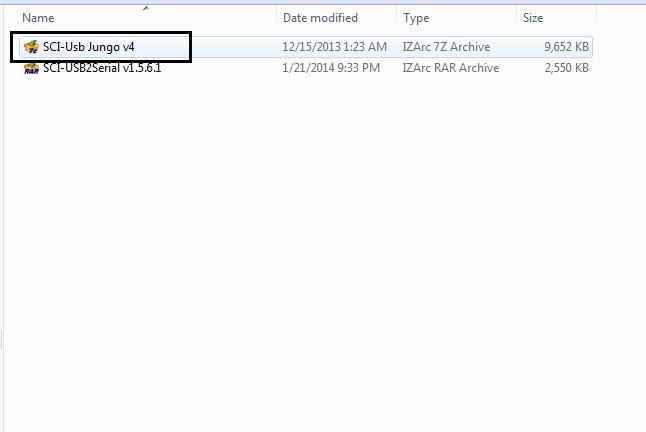 |
| sci-usb-jungo-v4 |
2. Choose the application DPInst.exe, make sure to select your compatible driver if 32bit use x86 and if on 64bit use x64
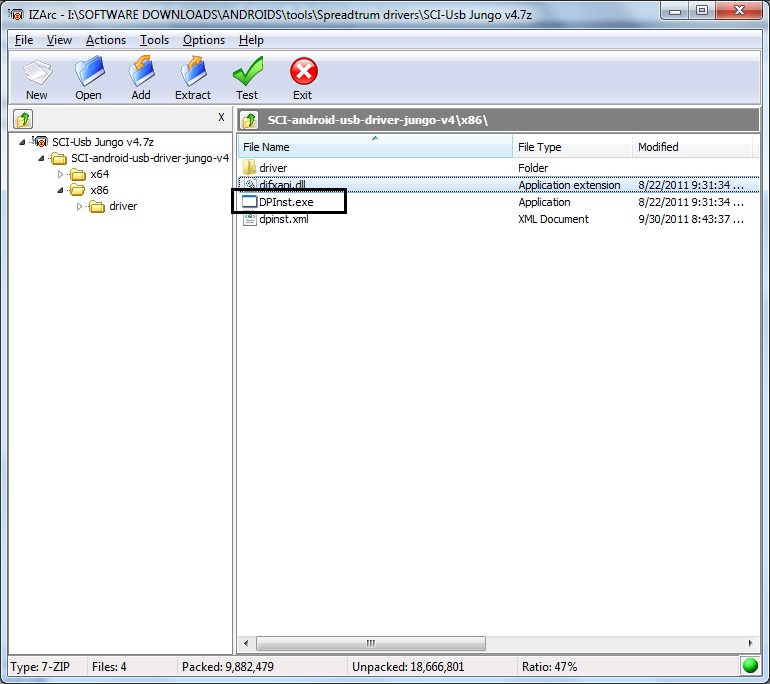 |
| DPInst.exe |
3. Click next
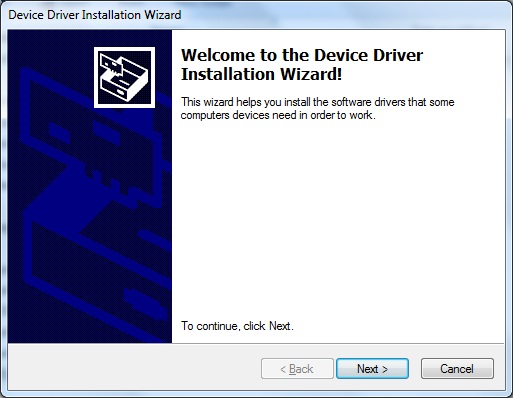 |
| installation-wizard |
4. Just ignore and click "install this driver software anyway", this pop up will show up number of times just click install this driver software anyway to continue.
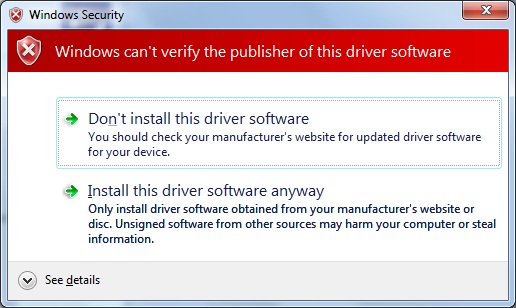 |
| install-this-driver-software-anyway |
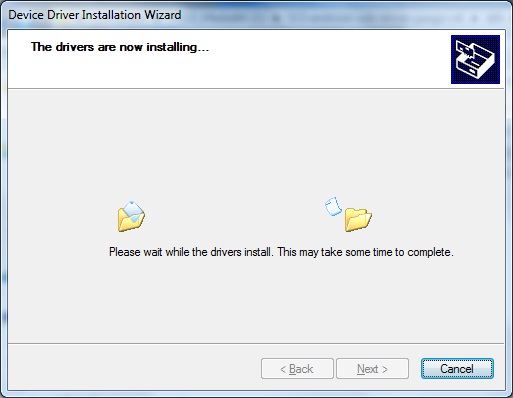
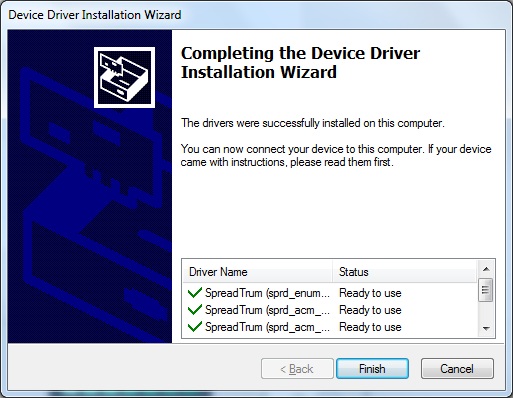
5. Wait until the installation is complete
 |
| installing-drivers |
 |
| drivers-installed |
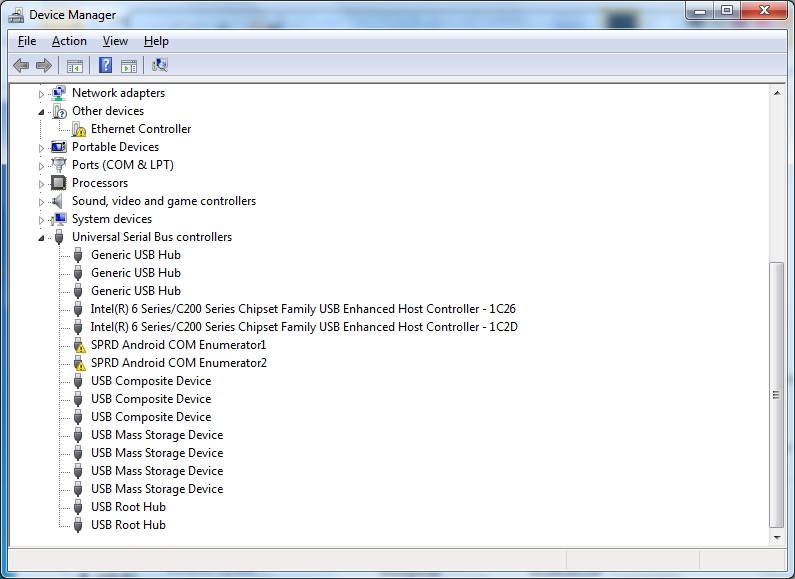
6. Try to connect your android phone (spreadtrum) if your computer will be able to detect your device.
 |
| device-manager |
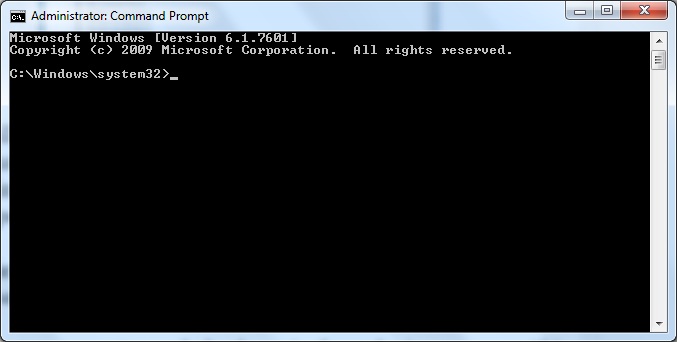
7. You will notice from your device manager of the warning icon on yellow marks for your spreadtrum drivers, to fix this temporarily when using researchdownload so that you can flash your device simply open up your command prompt and run as Administrator.
 |
| command-prompt-administrator |
8. Type the following:
bcdedit /set loadoptions DDISABLE_INTEGRITY_CHECKS
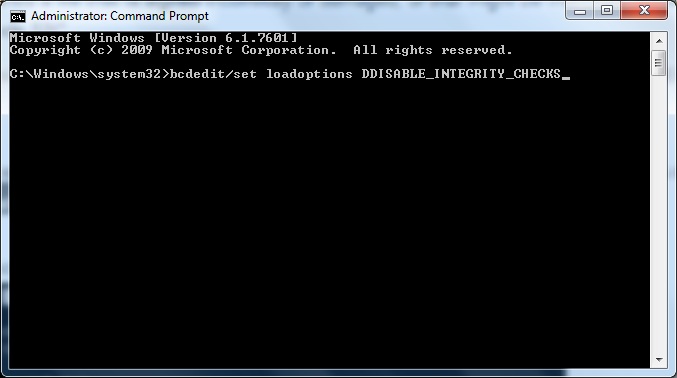 |
| DDISABLE_INTEGRITY_CHECKS |
9. Restart your computer and check again from device manager if it removes the yellow mark warning icon beside your SPRD then try to use now researchdownload if it can detect your spreadtrum android device.
Congrats! Now you can use Researchdownload tool to flash your spreadtrum devices.
note: here's the original post of my tutorial (here).
Share with friends if you find my blog helpful.

 Let's take another look on how we can screenshot our android device when in recovery mode using RSCTK.


